
How to Safely Make Edits to Your Professionally Designed PDFs
Can you edit a professionally designed PDF yourself — and can you do it without breaking your layout?
Professionally designed PDFs are great for reports, brochures, and donor-facing materials, but what happens when you need to change something after the file is delivered? While it’s technically possible to edit a PDF yourself using tools like Adobe Acrobat or free editors, design elements like fonts and layout can easily shift and compromise your nonprofit’s visual quality. In this post, you’ll learn when DIY editing makes sense, which tools to try, and why working with your designer is often the safest way to keep your materials looking polished and professional.
DISCLAIMER:
When I started writing this I had the true intention of recommending some great ways for you to edit your PDFs yourselves. Only to come away with this: Don’t do it. It will give you a headache.
When you need to edit a PDF, you might be wondering, can I do this myself?
Technically, yes you can.
But like Jodie Foster in True Detective says, “Wrong question. Ask again.”
A better question is:
Should I edit a PDF myself?
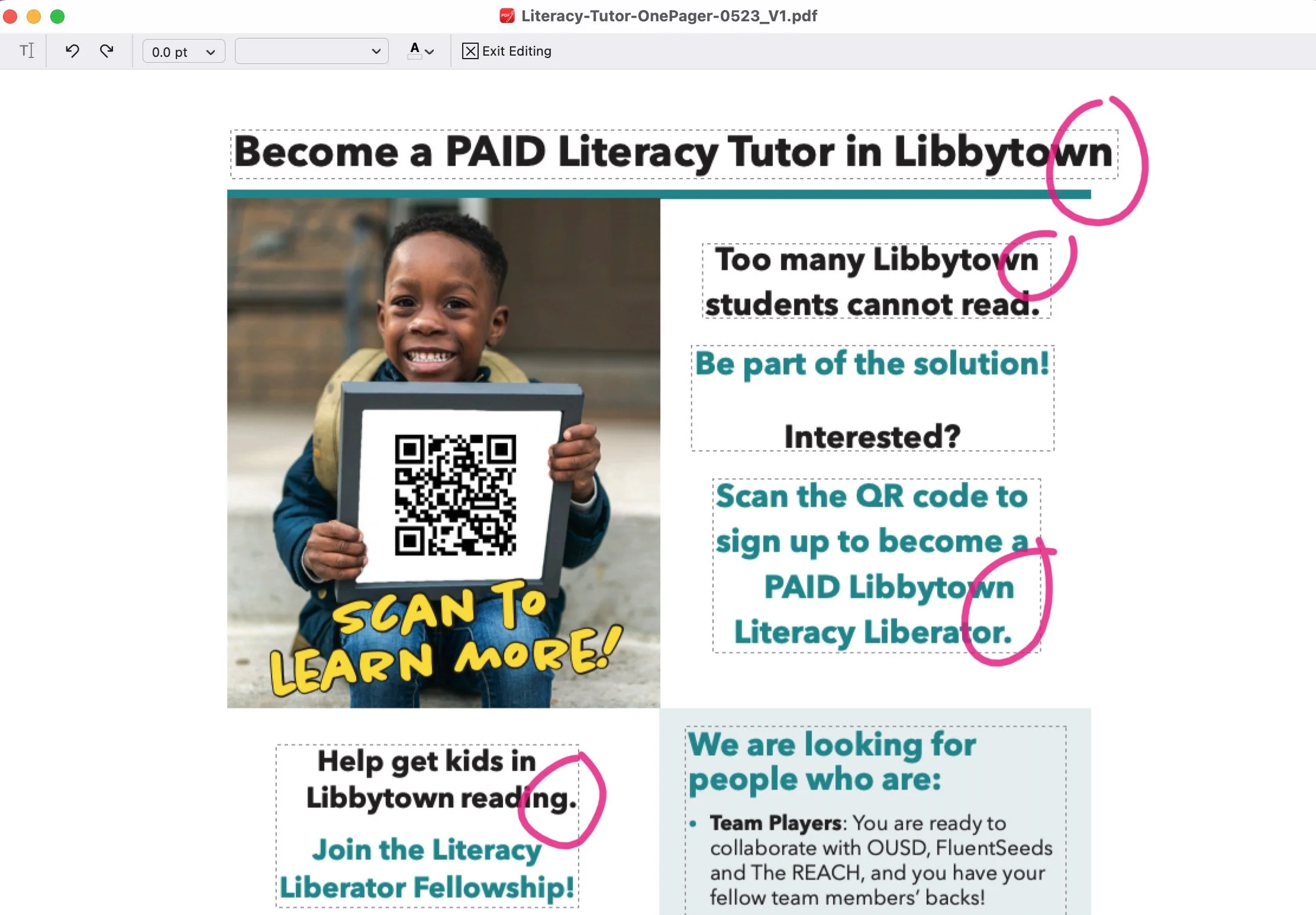
Editing a PDF with PDFGear on a Mac works, but in this case threw things off center.
If you’re lucky enough to have the paid version of Adobe Acrobat it is quite easy slightly frustrating to make minor edits. (We’ll come back to this in a minute.)
If not, I found an online tool that does a pretty great halfway decent job. PDFgear is completely free and you can edit the text in a PDF with it. Good news for PC users—the PC version has even more functionality than the Mac version.
Now, be careful here. While you can edit text, on a Mac you can’t move the text boxes—so things can become off center leaving you with less than professional results.
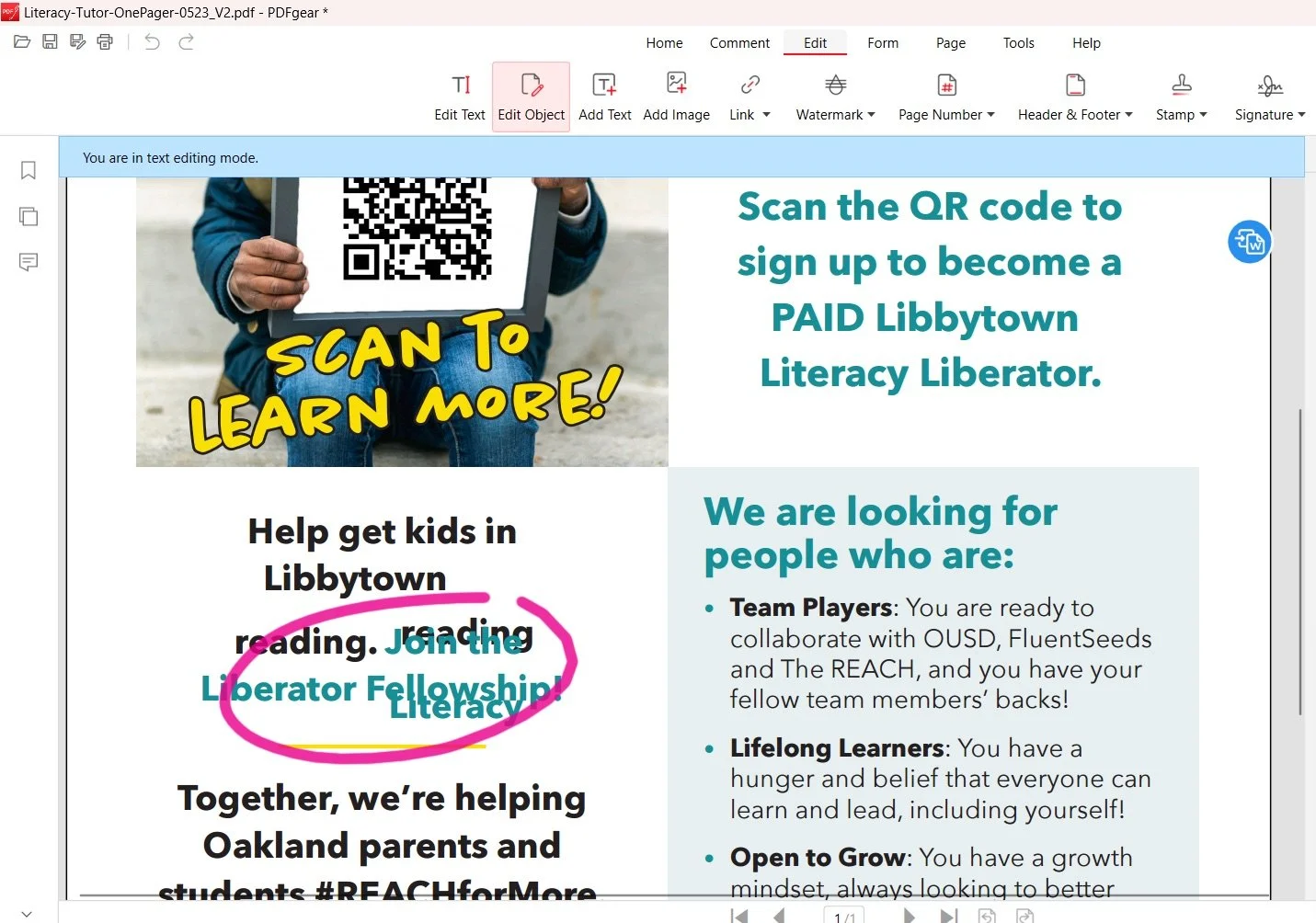
Editing a PDF with PDFGear on a PC works even better—but in this case the words jumped around.
But in some cases this can work well. Especially if it’s a very small edit like a misspelled word.
In the PC version you can move text boxes! Ok, I was getting excited and ready to recommend this to you, and then this happened:
Not great.
Now, back to those of you with Adobe Acrobat…I decided I’d better test out what it’s like to edit my PDF there. I assumed it would be smooth sailing.
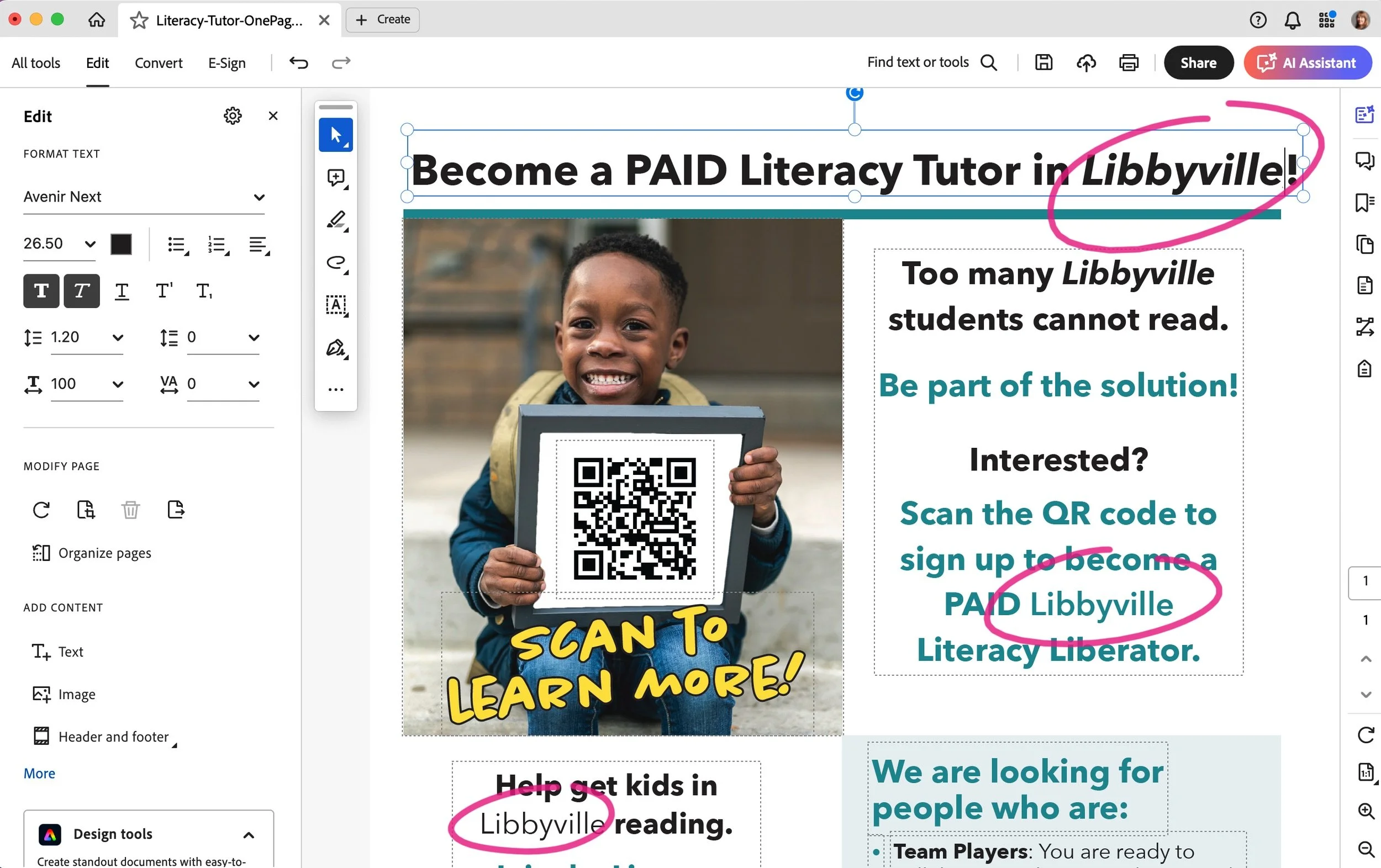
Despite having the correct fonts installed, I couldn’t get Acrobat to display the proper font.
But what did I encounter? Font issues! Oh boy.
The moral of this story is, while yes, sometimes you can have success editing your own PDF—especially if those edits are very minor—it can save you a lot of time and stress to just reach out to me with your edits. This is true for projects we’ve worked on together or for projects where you have access to the original design files.
From edits to your PDFs to the design and development of a full fundraising campaign, I’m here to make your mission shine. Let’s talk!
*While you can’t edit a PDF with the free version of Acrobat Reader, I always recommend it as the best way to mark up PDFs when you're sending me your edits!
FAQs
-
Yes — it’s technically possible using tools like Adobe Acrobat (especially the paid version) or online editors like PDFgear — but minor changes are much more reliable than larger edits, and things like text boxes and fonts often shift in unexpected ways.
-
Fonts may not display correctly, text boxes can lose alignment, and layout can look unprofessional — particularly if your tool doesn’t support moving text or matching design elements perfectly.
-
If the change is more than a tiny typo or if you want to preserve layout, quality, and brand consistency, reaching out to your designer (especially the one who originally created the PDF) will save you time and avoid potential headaches.
-
While paid versions of Adobe Acrobat offer more professional editing features, free tools like PDFgear can handle simple text tweaks — but be cautious on Mac where text boxes may not move and layout can break.